
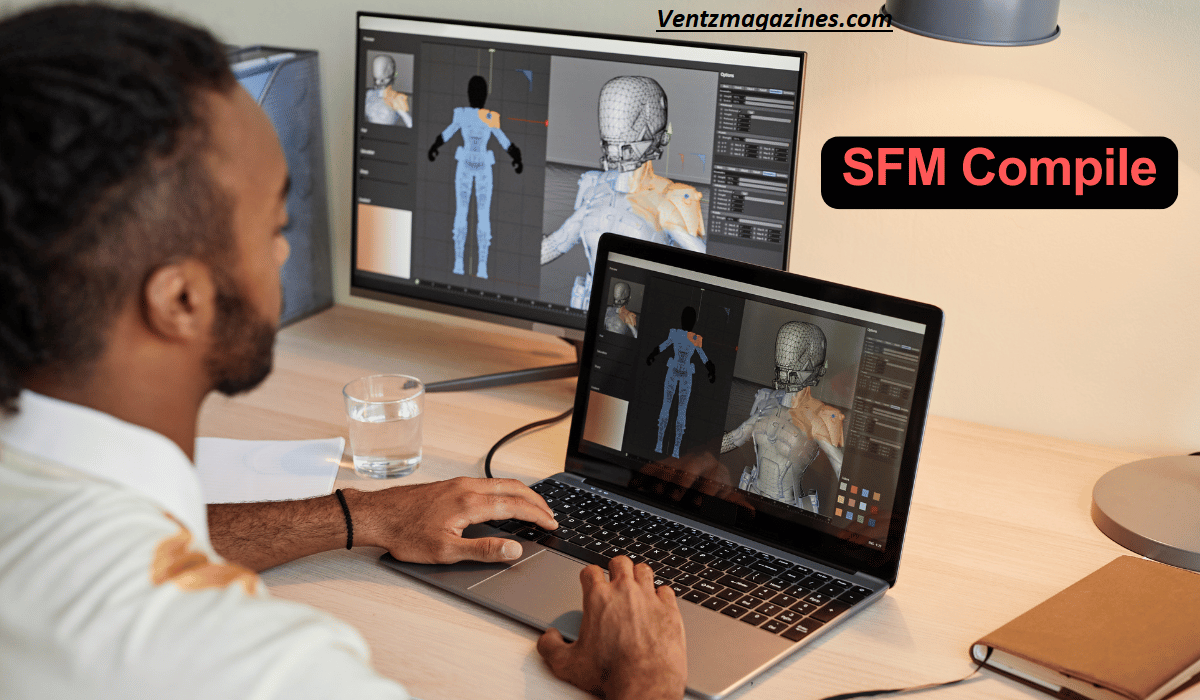
SFM Compile refers to the process of preparing and rendering a project in Source Filmmaker (SFM) into a final video file.
After creating animations, camera movements, lighting, and scenes in SFM, the compile step converts the project timeline into a playable video format.
Users choose settings such as resolution, frame rate, image sequence, or video codec before exporting.
Many creators render image sequences first and then combine them into a video using editing software for better quality and stability.
Compiling is an important final step because it turns the animated project into a shareable video that can be uploaded to platforms like YouTube or used in presentations and creative projects.
Table of Contents
Quick Table
| Section | What You Will Learn |
|---|---|
| What is SFM Compile | Definition and basics of compiling in Source Filmmaker |
| Why Compiling is Important | Why models and assets must be compiled |
| Files Used in Compilation | QC, SMD, DMX, and MDL formats |
| Tools Needed | Crowbar tool, studiomdl.exe, and Hammer Editor |
| Step-by-Step Guide | Beginner-friendly SFM compile workflow |
| Common Errors | Fixing model sequences, missing textures, QC issues |
| Rendering Settings | Best SFM rendering settings for high-quality output |
| Beginner Tips | Practical advice for smooth workflow |
| FAQs | Quick answers to common questions |
What is SFM Compile?
SFM Compile refers to the process of converting raw 3D assets into formats that can be used inside Source Filmmaker and the Source Engine.
In simple terms, compiling transforms raw files like SMD / DMX files and textures into game-ready files such as MDL models and VTF materials.
In the game engine asset compilation workflow, raw models created in software like Blender or 3ds Max cannot be directly used by Source Filmmaker.
Instead, they must go through a model compiler process using tools such as studiomdl.exe or the Crowbar tool. This process reads instructions from a QC file, processes the mesh and animation data, and outputs compiled model files.
The compiled output typically includes files like MDL, VVD, VTX, and PHY, which are required by the Source Engine. These compiled assets allow animators to use custom characters, props, and animations inside Source Filmmaker projects.
For animators and modders, understanding SFM compile is essential for creating custom models, importing characters, and building a complete animation pipeline.
It also ensures that assets load correctly, textures appear properly, and animations play smoothly during SFM video export or image sequence rendering.
Without compilation, Source Filmmaker cannot recognize or load the assets needed for animation or rendering.
Why Compiling is Important in Source Filmmaker
Compiling is a critical step in the Source Engine animation pipeline because it converts raw assets into optimized formats that the engine can understand.
When creating models, animations, or maps, the files must be compiled before they can be used in Source Filmmaker.
One major reason compiling is important is compatibility. The Source Engine only reads specific formats like MDL models, VTF textures, and BSP maps.
Raw SMD / DMX files or image files cannot be used directly. The compile process transforms them into usable source engine assets.
Another reason is performance optimization. During compilation, the model compiler processes the mesh, skeleton, and animation data. This ensures the model runs efficiently inside Source Filmmaker.
Optimized models reduce lag, improve rendering speed, and make SFM video export smoother.
Compilation also allows textures and materials to load correctly. If textures are not compiled properly, models may appear purple or missing in Source Filmmaker. The compile process links the QC file, material paths, and texture files together.
Additionally, compiling helps detect problems early through compile logs. These logs display warnings and errors related to missing textures, incorrect animation sequences, or QC script mistakes.
By checking compile logs, creators can fix problems before rendering animations.
In short, compiling is the bridge between raw 3D assets and a working Source Filmmaker animation project.
Files Used in SFM Compilation
The SFM compile process involves several important file types that work together to create usable models in Source Filmmaker. Each file plays a specific role in the animation pipeline and game engine asset compilation process.
These files include scripts, model data, animation data, and compiled outputs. When creating custom assets for the Source Engine, you must understand how these file types interact.
For example, a typical workflow starts with exporting SMD / DMX files from a 3D modeling program. These files store mesh and animation information.
Then, a QC file is written to tell the model compiler how to compile the model. Finally, the studiomdl.exe compiler processes everything and outputs a compiled MDL file.
The compiled files are then placed inside the Source Filmmaker directory so they can be loaded in the animation editor.
Below are the main files used in the SFM compile workflow.
QC Files
A QC file (short for QuakeC script) is the most important file in the SFM compile process. It acts as a set of instructions for the model compiler, telling it how to compile the model and where to find its assets.
The QC file defines things like the model name, body groups, animation sequences, and material directories. For example, it tells studiomdl.exe which SMD files contain the mesh and which files contain animations.
A typical QC script might include commands that define the model name, animation sequences, and material paths. It also links the model to its textures and physics data.
Without a properly written QC file, the compiler cannot process the model correctly. Many compile errors happen because of incorrect QC syntax or missing paths.
For beginners working with Source Filmmaker, learning how to create and edit QC files is one of the most important skills in the model compilation workflow.
SMD Files
SMD files store the geometry and skeletal animation data for models used in the Source Engine. These files are typically exported from modeling software such as Blender or 3ds Max using specialized export plugins.
An SMD file contains information about the model’s mesh, bones, and animation frames. During the SFM compile process, the model compiler reads the SMD file and converts it into a compiled MDL model.
SMD files are widely used in Source Filmmaker animation pipelines because they are simple and easy to export. They also support both static meshes and animated sequences.
For example, a model may have one SMD file for the mesh and several SMD files for different animation sequences like idle, walk, or attack.
When the QC file references these SMD files, the studiomdl.exe compiler processes them and combines them into a single compiled model.
This makes SMD files an essential part of the compile model files workflow.
DMX Files
DMX files are a more advanced format used by the Source Engine and Source Filmmaker for animation data. Compared to SMD files, DMX files support more complex animation information and improved data structures.
In modern SFM animation pipelines, many animators prefer DMX files because they work better with complex rigs and detailed animation sequences.
DMX files can store multiple types of data, including mesh geometry, animation keyframes, and skeletal structures. They are commonly used in professional Source Filmmaker animation projects.
During the SFM compile process, the model compiler reads DMX files and converts them into compiled model formats used by the engine.
Although SMD files are still widely used, DMX files are becoming more popular because they provide better flexibility for advanced animation setups.
Understanding how SMD / DMX files work helps animators build more advanced assets for the Source Engine.
MDL Output
The final result of the SFM compile process is the MDL output file. This is the compiled model that the Source Engine and Source Filmmaker can actually use.
When the studiomdl.exe compiler processes the QC file and model data, it generates several output files including:
| File | Purpose |
|---|---|
| MDL | Main compiled model |
| VVD | Vertex data |
| VTX | Rendering information |
| PHY | Physics data |
These compiled files are required for the model to work inside Source Filmmaker. Once generated, they must be placed in the correct models folder inside the SFM directory.
After that, the model becomes available in the animation editor and can be used in the render pipeline.
The MDL file is essentially the final version of the model that the Source Engine understands.
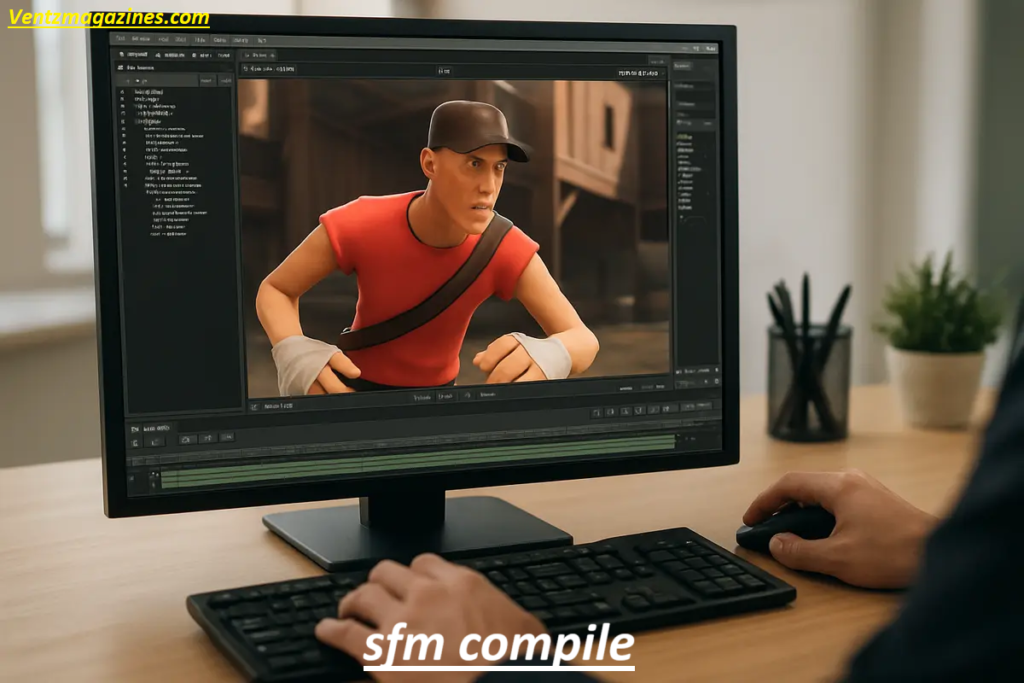
Tools Needed for SFM Compile
To successfully compile models for Source Filmmaker, several tools are required. These tools handle different parts of the game engine asset compilation workflow.
Most animators and modders rely on a combination of official Source Engine tools and community software. These tools help convert raw files, write compile scripts, and run the model compiler.
The most commonly used tools include:
| Tool | Purpose |
|---|---|
| Crowbar tool | Compile and decompile models |
| studiomdl.exe | Official Source Engine model compiler |
| Hammer Editor | Compile maps and levels |
Using these tools together allows creators to build complete Source engine assets including characters, props, maps, and animations.
Crowbar
The Crowbar tool is one of the most popular utilities used for SFM compile workflows. It provides a user-friendly interface for compiling and decompiling models used in the Source Engine.
Instead of running the studiomdl.exe compiler manually through command prompts, Crowbar simplifies the process with a graphical interface. Users can easily select the QC file, choose the output folder, and start the compilation process.
Crowbar also displays compile logs, which help users identify errors during compilation. These logs provide information about missing textures, animation problems, or QC script issues.
Another advantage of Crowbar is that it supports both compiling and decompiling models. This makes it a valuable tool for modders who want to study existing models or modify them.
Because of its simplicity and powerful features, the Crowbar tool is widely recommended for beginners learning the SFM compile process.
Studiomdl
studiomdl.exe is the official model compiler used by the Source Engine. It is responsible for converting raw model files into compiled MDL output files.
When the compiler runs, it reads instructions from the QC file, processes the SMD / DMX files, and generates the compiled model data required by the engine.
Although it can be used through command line, most creators access it through tools like Crowbar to simplify the workflow.
Studiomdl performs several tasks during compilation including mesh processing, animation conversion, and material linking. It also generates compile logs, which help developers diagnose problems during the build process.
Understanding how the studiomdl.exe compiler works is important for anyone creating custom models or assets for Source Filmmaker projects.
Hammer Editor
Hammer Editor is the official map creation tool for the Source Engine. While it is mainly used for building levels and environments, it also plays a role in the asset compilation workflow.
Hammer allows developers to design maps using brushes, textures, and entities. Once the map is complete, it must be compiled into a BSP file so the Source Engine can load it.
The map compile process uses tools like VBSP, VVIS, and VRAD to generate lighting data and optimize map geometry.
Although map compiling is different from model compiling, it follows the same concept of game engine asset compilation.
For animators creating custom scenes in Source Filmmaker, Hammer Editor can be used to build environments and maps for animation projects.
SFM Compile Step-by-Step Guide
The SFM compile workflow may seem complicated at first, but once you understand the steps it becomes much easier.
The process involves preparing model files, writing a QC file, running the model compiler, and placing the compiled assets inside the Source Filmmaker directory.
This step-by-step guide explains the basic workflow used by most animators and modders when creating custom assets.
Step 1 Prepare Your Model Files
The first step in the SFM compile process is preparing your model files. These files usually come from 3D modeling software such as Blender or 3ds Max. After creating your model, you need to export it as SMD or DMX files.
These files contain the mesh, skeleton, and animation data required by the Source Engine. Organizing your files properly is important to avoid errors during compilation.
Create a folder structure for your project that includes model files, textures, and animation sequences. Keeping everything organized helps the model compiler locate the correct assets.
You should also prepare your textures and convert them into formats supported by the engine. Proper preparation ensures that the next steps of the SFM compile workflow run smoothly.
Step 2 Write the QC File
The next step is creating the QC file, which controls how the model compiler builds your model. This script defines the model name, animation sequences, and material directories used by the Source Engine.
Inside the QC file, you will reference your SMD / DMX files, define body groups, and specify animation sequences. The script also includes commands that link textures and materials to the model.
A well-written QC file ensures the compiler knows exactly how to process the assets. Even a small mistake in the QC script can cause compilation errors.
Because of this, many beginners spend time learning the syntax and structure of QC commands.
Once the QC file is ready, it becomes the main instruction file used by studiomdl.exe during the compilation process.
Step 3 Run the Compiler
After preparing the files and writing the QC file, the next step is running the model compiler. Most creators use the Crowbar tool to simplify this process.
Inside Crowbar, you select the QC file and configure the path to studiomdl.exe. Once everything is set, you start the compile process.
During compilation, the tool reads the QC script, processes the SMD / DMX files, and generates compiled model files. The process may take a few seconds depending on the complexity of the model.
When the compilation finishes, the tool displays compile logs showing warnings or errors. Reviewing these logs is important because they reveal problems such as missing textures or animation issues.
If errors appear, you must fix them before using the model in Source Filmmaker.
Step 4 Move Compiled Files to SFM Folder
Once the compilation is successful, the next step is placing the compiled files inside the Source Filmmaker directory.
The compiled files typically include MDL, VVD, VTX, and PHY files. These files must be copied into the correct folder inside the Source Engine file structure.
Usually, the model files go into the models folder, while materials and textures go into the materials directory.
Placing files in the correct location ensures that Source Filmmaker can detect the new assets. If the files are placed incorrectly, the model may not appear in the animation editor.
After moving the files, you are ready to load the model in Source Filmmaker.
Step 5 Test Inside Source Filmmaker
The final step of the SFM compile workflow is testing the model inside Source Filmmaker.
Launch Source Filmmaker and open the animation editor. From the model browser, search for the compiled model you added to the directory. If everything was compiled correctly, the model should appear in the list.
Add the model to the scene and test its animations, textures, and rigging. Check that the materials load correctly and that the animation sequences play without issues.
If something looks wrong, you can return to the compile logs to identify the problem.
Testing your assets is an important part of the animation pipeline because it ensures the model works properly before starting a full animation project.
Common SFM Compile Errors
During the SFM compile process, errors are very common, especially for beginners. These errors usually appear in the compile logs generated by the model compiler.
Understanding these errors is important because they help identify problems with the model files, textures, or QC file scripts.
Below are some of the most common issues that occur during compile model files workflows.
Examples
Common compile problems include missing animation sequences, incorrect material paths, and syntax errors inside the QC script.
These issues usually occur when the compiler cannot find the required SMD / DMX files or when the QC instructions are written incorrectly.
Another frequent problem is missing texture files, which causes models to appear purple in Source Filmmaker. Sometimes the compiler also reports bone weight errors or incorrect mesh structures.
Checking the compile logs is the best way to identify these issues. The logs show exactly where the error occurs, allowing you to correct the problem quickly.
By carefully reviewing compile logs and correcting file paths, most SFM compile errors can be resolved easily.
Model Has No Sequences
One common compile error is “model has no sequences.” This happens when the QC file does not define any animation sequences.
In the Source Engine animation pipeline, a model must include at least one animation sequence so the engine can recognize it. If the compiler cannot find animation data in the SMD or DMX files, it will generate this error.
To fix the issue, you must define a sequence in the QC script that references the correct animation file. Once the animation sequence is added, the compiler will process the model correctly.
This error often occurs when beginners forget to include animation files during the compile model files workflow.
Missing Textures
Another common problem during SFM compile workflows is missing textures. When this happens, the model appears purple or completely untextured inside Source Filmmaker.
This issue usually occurs when the material path in the QC file is incorrect or when the texture files are not converted into the correct format.
The Source Engine uses VTF textures and VMT material files. If these files are missing or incorrectly placed in the materials folder, the engine cannot load them.
To fix the issue, ensure that all textures are converted properly and placed in the correct directory. Also verify that the material path in the QC script matches the folder structure.
QC Syntax Error
A QC syntax error happens when the script used by the model compiler contains incorrect commands or formatting. Because the QC file controls the entire compile process, even a small mistake can cause the compiler to fail.
Common syntax problems include missing quotation marks, incorrect file paths, or unsupported commands. These errors usually appear clearly in the compile logs, making them easier to diagnose.
To fix QC syntax errors, review the script carefully and compare it with examples from official Source Engine documentation. Once the syntax is corrected, the model should compile successfully.
Learning proper QC syntax is a key skill for anyone working with Source Filmmaker assets.
Best Settings for High-Quality SFM Rendering
After successfully compiling models, the next step in the animation pipeline is rendering. Good SFM rendering settings are essential for producing high-quality animations and smooth SFM video export.
One of the most recommended methods is using image sequence rendering instead of exporting directly to video. Rendering an image sequence allows each frame to be saved individually, reducing crashes and improving quality.
Once the frames are rendered, they can be combined into a video using editing software with AVI / MOV export formats.
Important render settings include resolution, anti-aliasing, lighting quality, and motion blur. Higher resolution and anti-aliasing produce sharper visuals, while proper lighting improves realism.
Many animators also enable advanced settings such as ambient occlusion and depth of field to enhance visual quality.
By combining correct SFM rendering settings with optimized models, creators can produce professional-looking animations using Source Filmmaker.
Tips for Beginners
If you are new to SFM compile workflows, following a few best practices can save a lot of time and frustration.
First, always organize your Source engine assets properly. Keeping model files, textures, and animation files in separate folders makes the compile process easier to manage.
Second, always read the compile logs generated by the model compiler. These logs provide valuable information about missing files, incorrect paths, or QC syntax errors.
Third, start with simple models before attempting complex animations. Learning the basics of SMD / DMX files, QC scripts, and compile commands helps you understand the entire animation pipeline.
Another useful tip is to test assets frequently inside Source Filmmaker. This allows you to identify problems early before starting large animation projects.
Finally, use reliable tools like the Crowbar tool, studiomdl.exe, and Hammer Editor to manage your assets. These tools simplify the game engine asset compilation process and make it easier to work with custom models and animations.

FAQ’s
What does SFM compile mean?
SFM compile is the process of converting raw assets into formats that the Source Engine and Source Filmmaker can use.
What tool compiles SFM models?
Most creators use the Crowbar tool, which runs the studiomdl.exe model compiler.
What file controls the compile process?
The QC file contains instructions used by the compiler.
Why does my model appear purple?
Purple textures usually mean the material or texture files are missing.
What is the best rendering method in SFM?
Rendering an image sequence and exporting as AVI or MOV provides the best quality.
Conclusion
Understanding the SFM compile process is one of the most important skills for anyone working with Source Filmmaker and the Source Engine.
Whether you are creating custom characters, props, or animations, compiling assets correctly ensures they function properly inside the engine.
The process begins with preparing model files and exporting them as SMD or DMX files from a 3D modeling program.
These files contain the mesh, skeleton, and animation data required for the animation pipeline. After that, a QC file must be written to instruct the model compiler how to process the assets.
The studiomdl.exe compiler, often accessed through the Crowbar tool, reads the QC script and converts the raw assets into compiled formats such as MDL, VTX, and VVD files.
These compiled files become usable Source engine assets that can be loaded inside Source Filmmaker.
After compilation, the files must be placed in the correct directory structure so they can be detected by the program. Once loaded, the models can be tested, animated, and rendered using proper SFM rendering settings.